You will know before having a telemedicine session, from your schedule, front desk, or by seeing 'Online' on the appointment card details in your Visits section. You have a permanent link associated with your Video Room on kure (meaning the link to your video room does not change). However, it is best practice to send the parents the link before any telemedicine session.
To find your Video Room link go to your Video Room tab. The top portion relates to your own video room. You can copy and paste the link, or use the Invite option which will open the apps you mostly use on your device so you can quickly share your link. If you have received an invite from someone else to join their Video Room, the bottom section is where you would paste their link to check-in.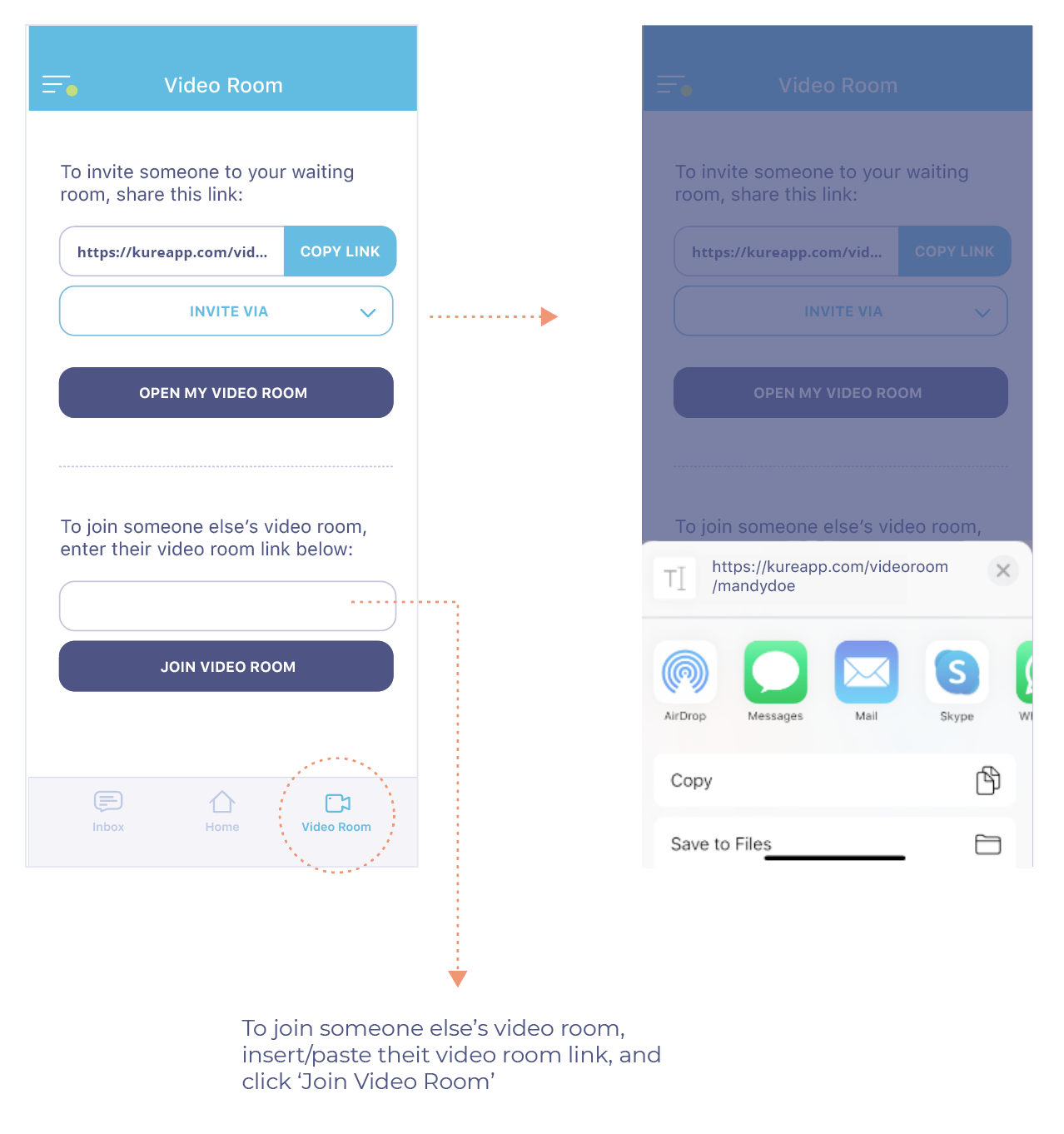
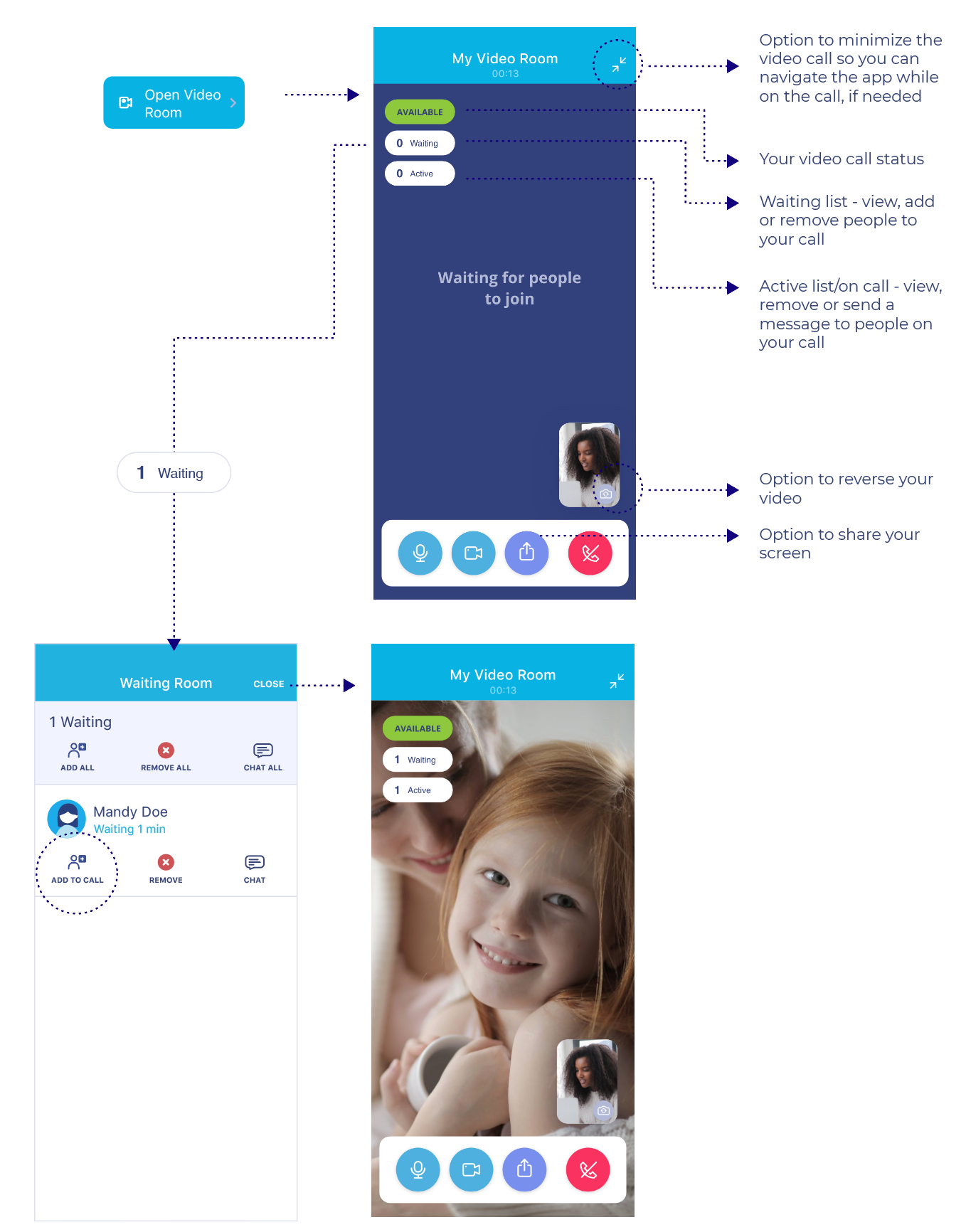
At the time of your Telemedicine session, click on the Video Room button from your appointment details. This will open your video room on the app. You can share your Video Room link by using the Share option. The parents/caregivers joining in do not get automatically added to the call, they check-in, and you have to allow them to your room. When they check in you will see the bubble labeled Waiting go from 0 to the number of people checked in. Click on the waiting bubble to view who is in the Waiting Room and add them to the call. You can also edit the status people that check in see, if you wish. This is by default 'Available'. You can tap it to edit. You can move your own video around anywhere on the screen if needed, as well as tap on your own video to reverse the camera if you need to show something. After ending your telemedicine call, make sure to also End the session, as the system does not assume ending the video call means the session has ended (ie. connection may drop).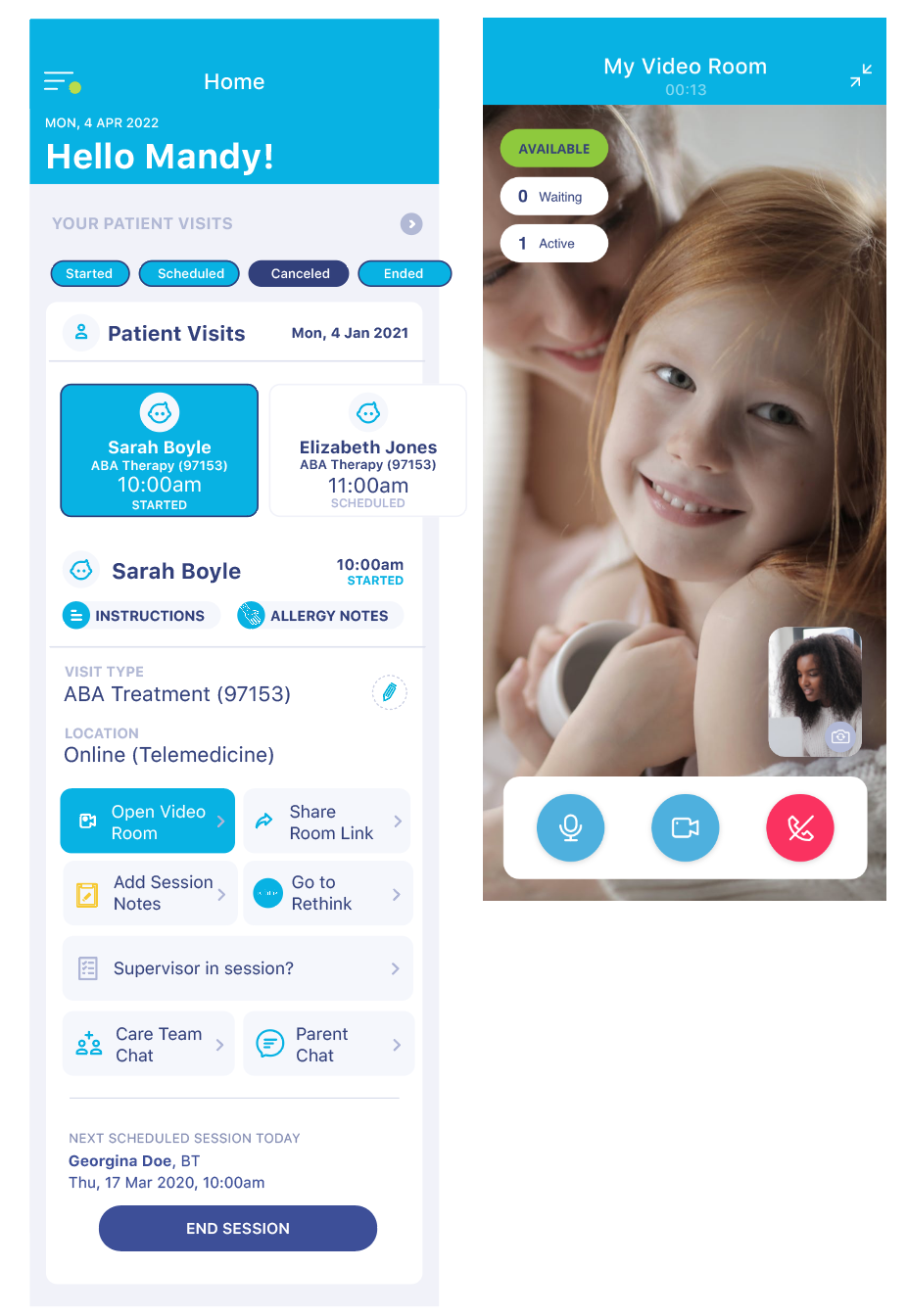
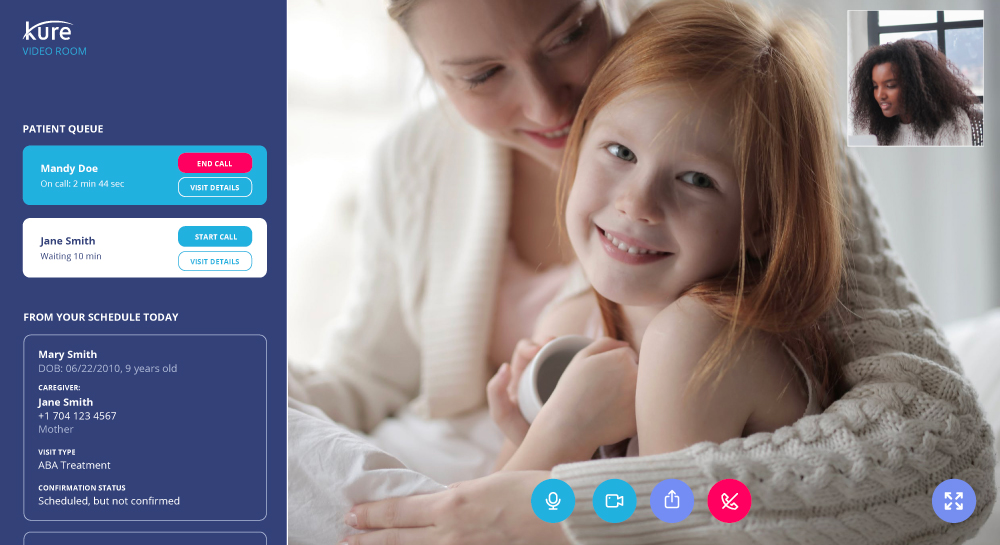
You can also use the kure web app for your telemedicine session, if you prefer. To do so, go to www.kureapp.com and log in using your kure phone number and your password. The app will by default open to your chats screen - your chat list, including your Workday chats, are on the left side, and the content of a select chat shows in the middle section. You will be able to see your Patient Visit forms, and can use the Video Room button to start your session, or you can click on the Video icon on the left side menu to open your Video Room. The functionality is the same as in the mobile app, but rather than having a bubble for your waiting room, people checking in will directly show in the left side of the Video Room screen. You also have a search option included on the web version.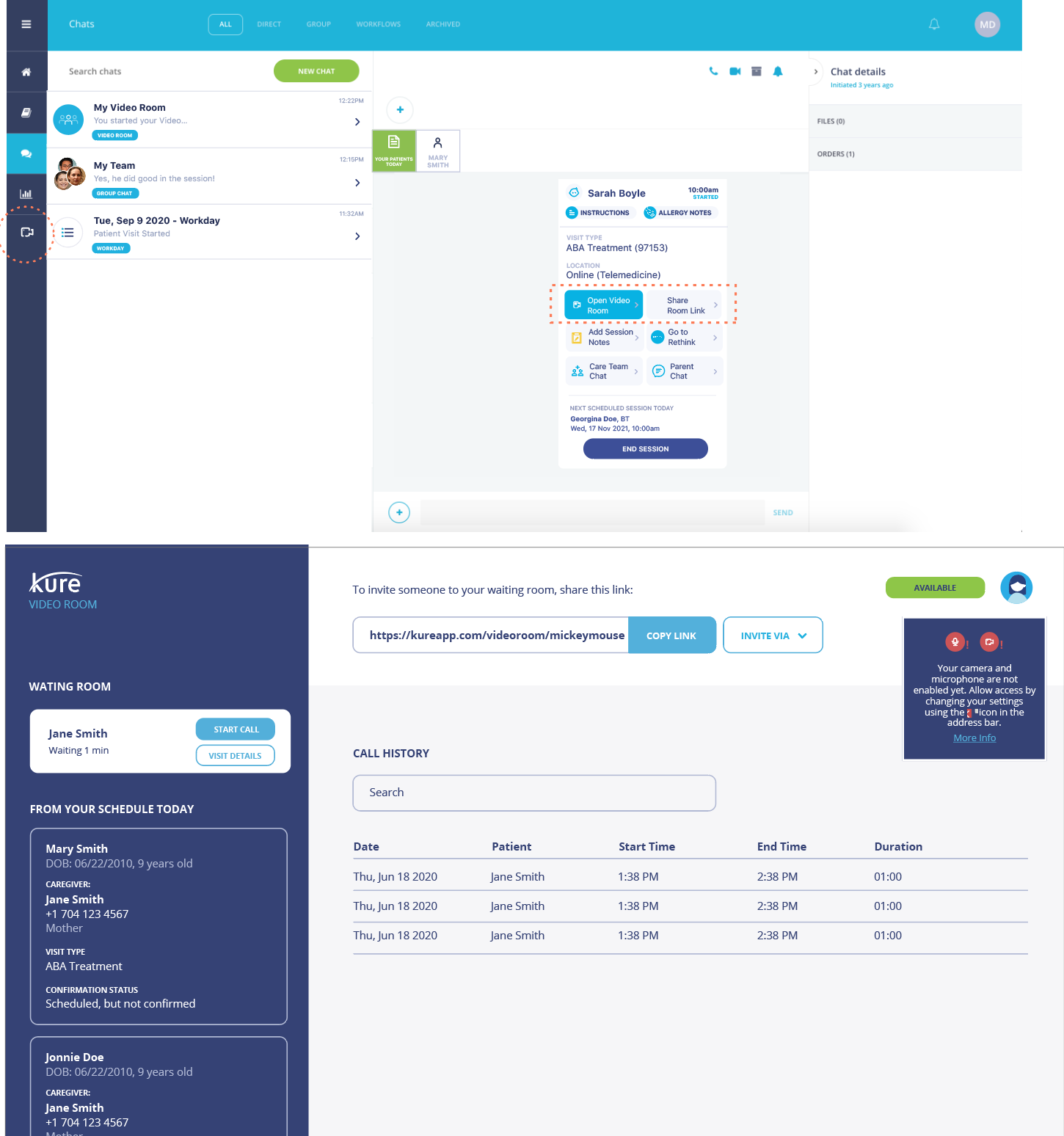
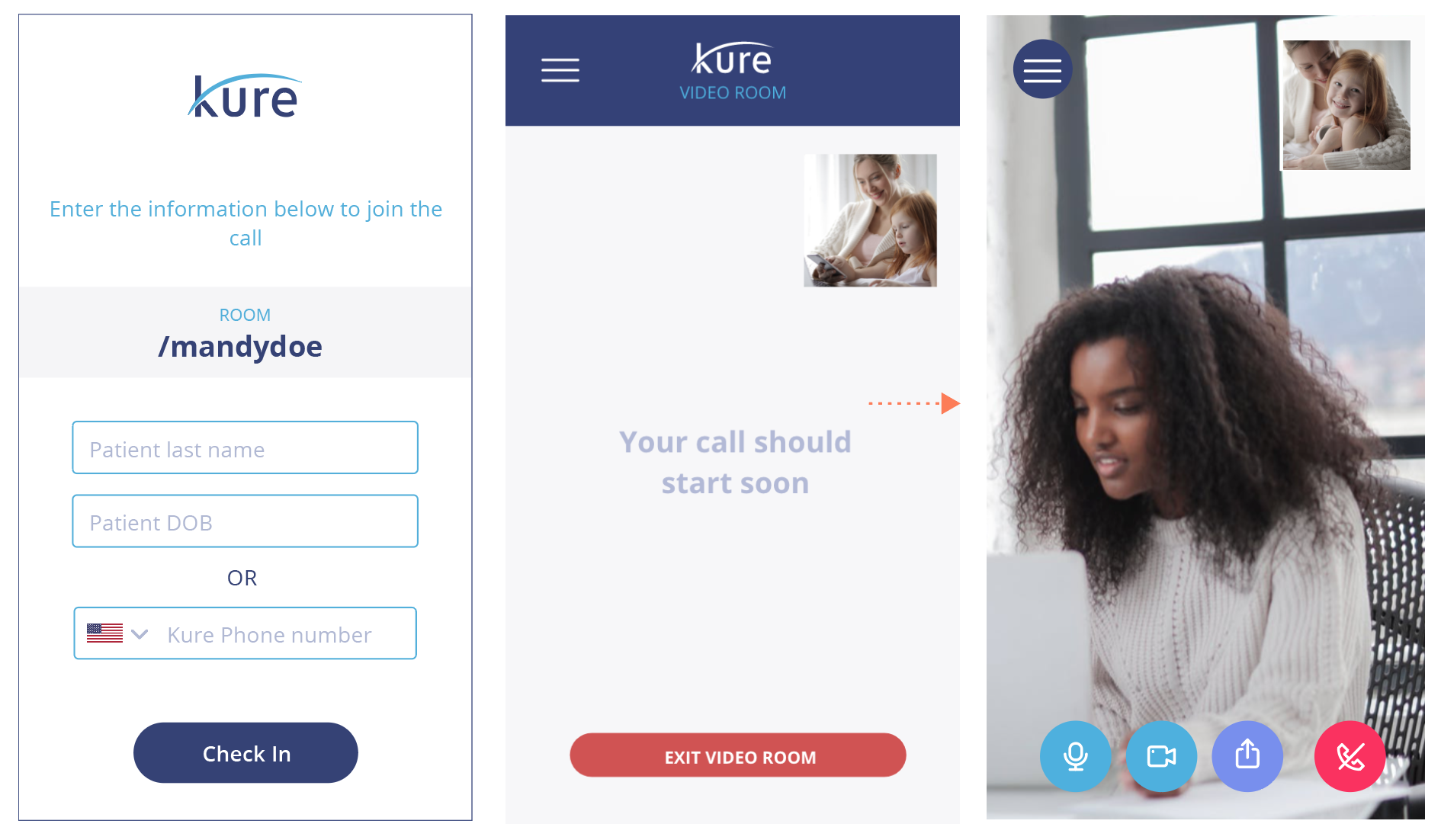
If they are using kure as a parent/caregiver, your video room link will redirect them to the telemedicine session. If they are not using kure, they can still join the call by inputting extra information for validation. They will need to enter the patient’s last name and DOB for validation. NOTE: if they are a kure member, and logging it as guest for the video call, they can also enter their kure phone number to connect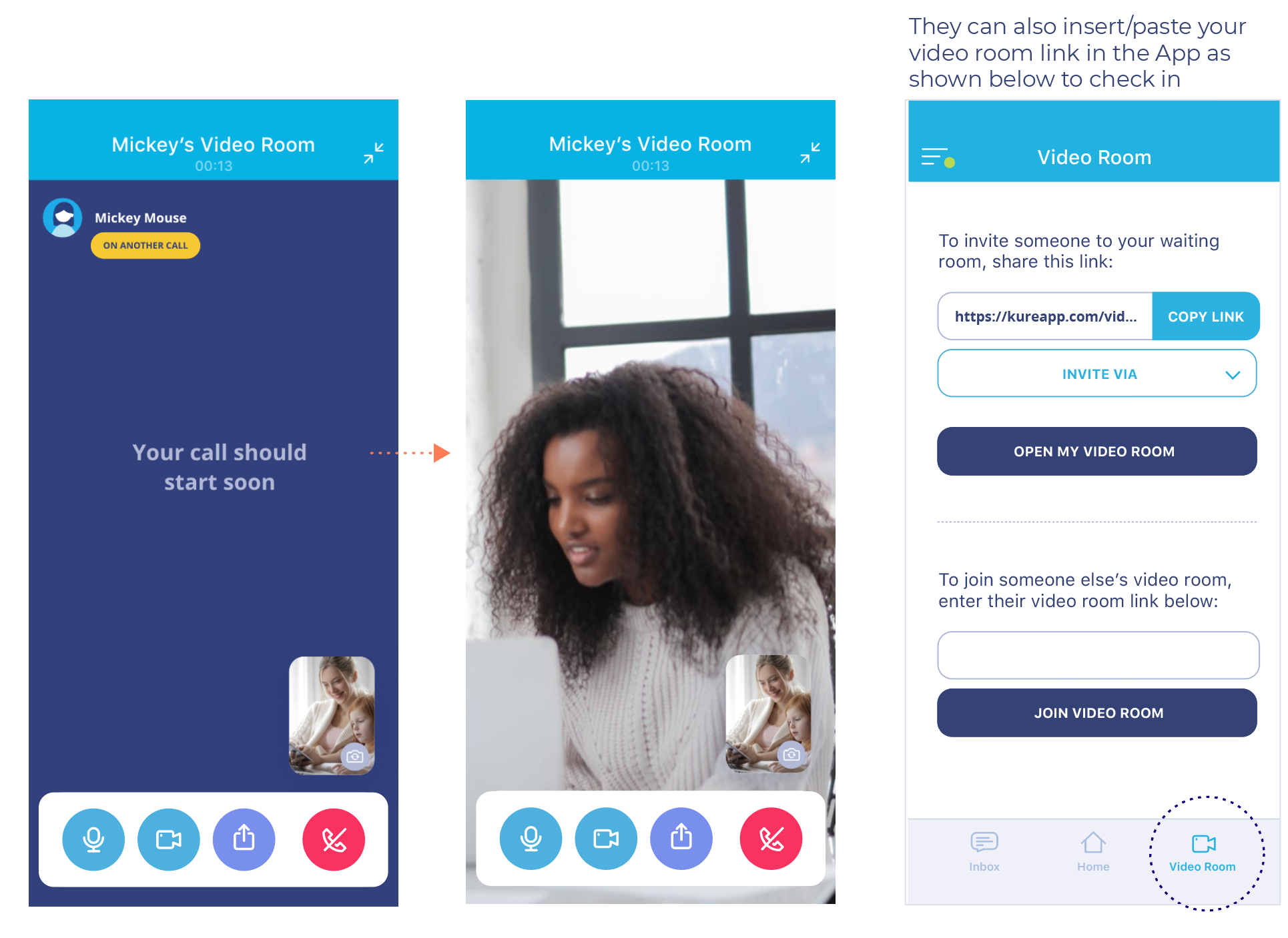
Contents