Patient Visits
last updated on Apr 15 2022, 12:05 pm EST
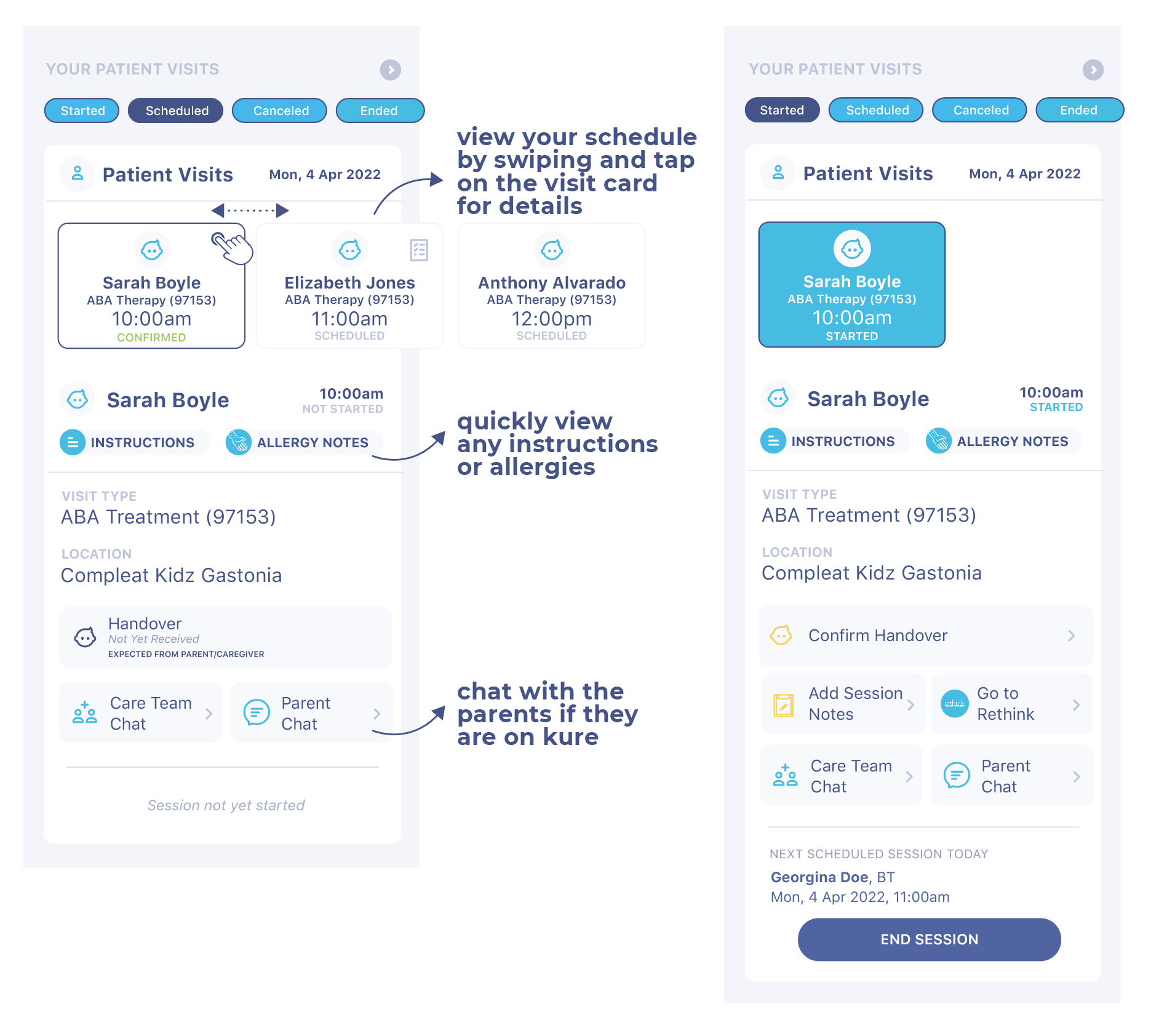
- This section above you Patient Visits is divided into 4 different statuses: Started, Scheduled, Canceled, and Ended for ease of use;
- Each appointment displayed under each status has a corresponding "Appointment Card". When you have multiple appointment cards displayed under an appointment status, swipe horizontally to view each of them. Tap on the appointment card to display the appointment details below.
- You can see your scheduled appointments for the workday in Your Patient Visits, under the Scheduled status
- When a patient/learner is arrived on the appointment calendar, the appointment card is accessed under the Started status
- Patient/Learner's Name, Start Time, and Appointment Status: Tapping the patient/learner's name will redirect you to their Learner Profile should you need more information.
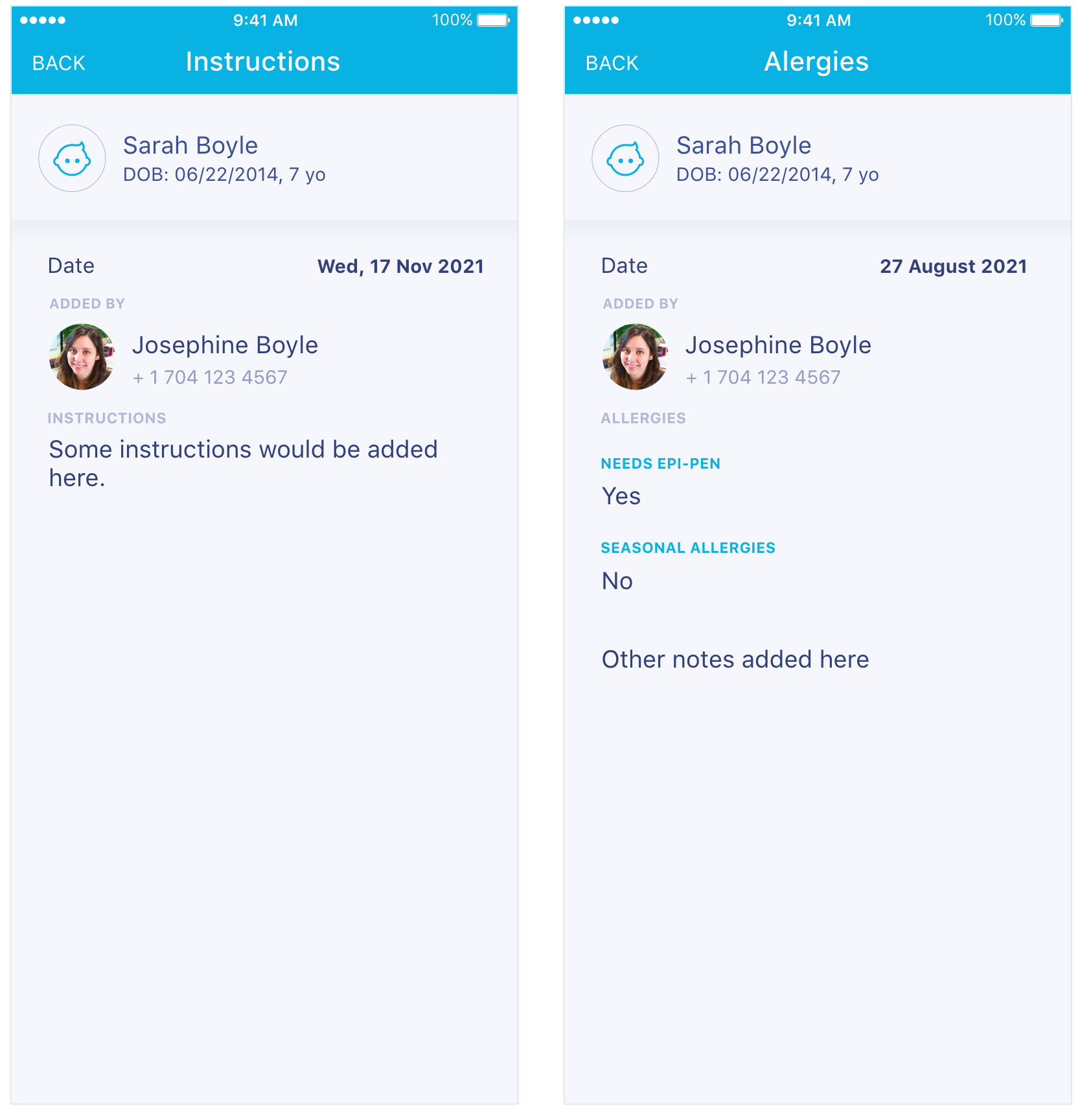
- Tap on Instructions and Allergy Notes to view. Instructions are sent by the parent/legal guardian via the Kure Parent App. It is very important to view both Instructions and Allergy Notes prior to every learner session
- Visit Type
- Location: where/how the service is taking place (in the Clinic or Online/Video Room)
- Handover (applicable for visits taking place at the clinic). If the handover has been received from the parent or previous provider, you will see a yellow icon and the text "Confirm Handover"
- Add Session Notes and Go to Rethink functions become available once the visit is started
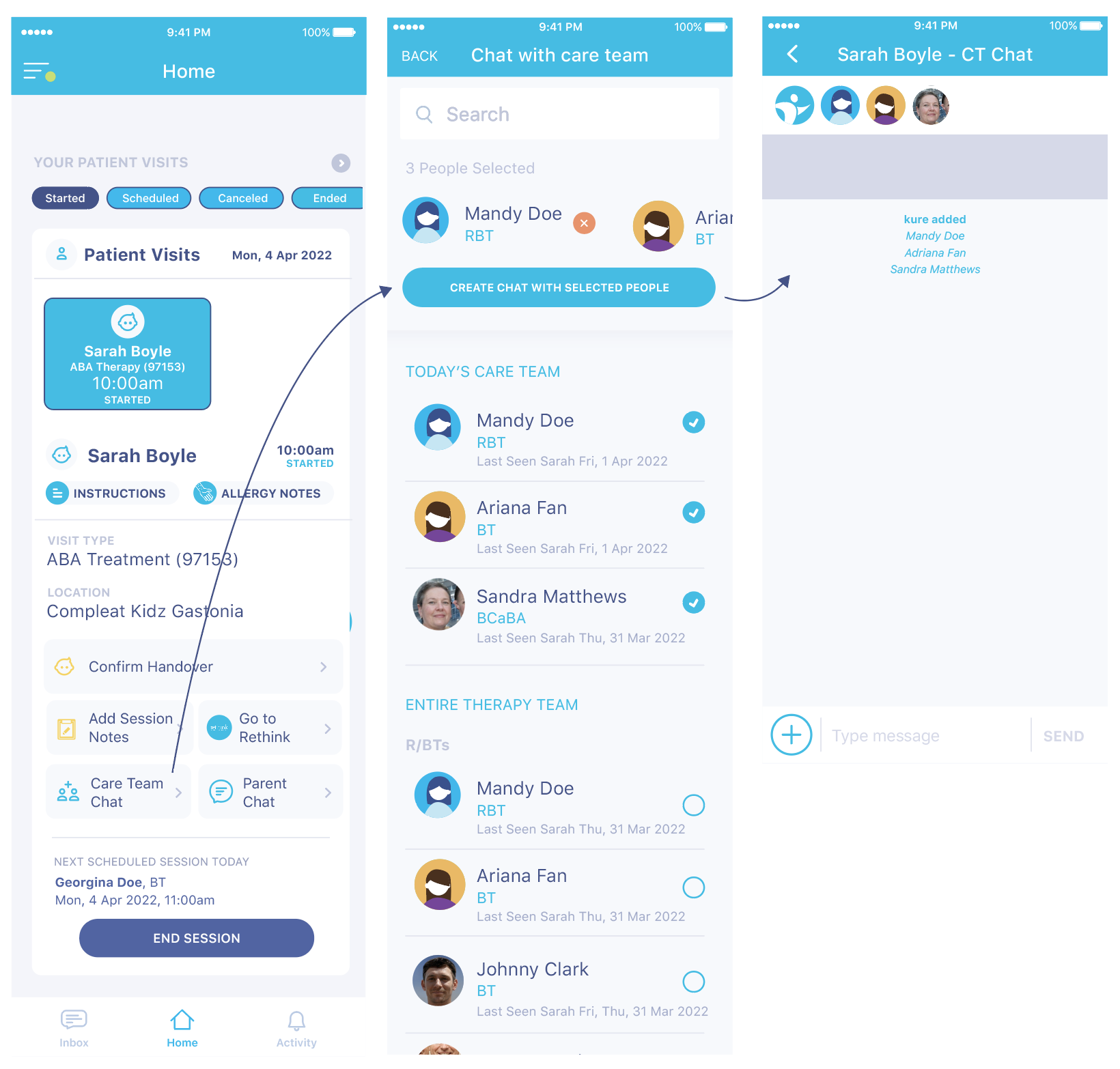
- Care Team Chat and Parent Chat - the care team chat option will select by default the providers that are seeing the child that day, but you can deselect or select other providers, as desired. Parent Chats will only work if the parent/legal guardian is using the Kure Parent App.
- Next Scheduled Session will display the next provider seeing the patient/learner, or state it is the learner's last session for the day.
- Click the End Session button when you finish your visit - the system will consider the start and end time to calculate the duration of the visit for billing and payroll, unless you enter a different start and end time via the Session Start/End Time Confirmation form (see separate User Guide section). DO NOT SKIP THIS STEP - ALWAYS END YOUR SESSION BEFORE MOVING ON TO YOUR NEXT APPOINTMENT.
If your session will not be taking place at the clinic/face-to-face and you will be doing a telemedicine session, you will be using the Video Room button to open the session. Please see more details about this in the Video Room article in this User Guide.
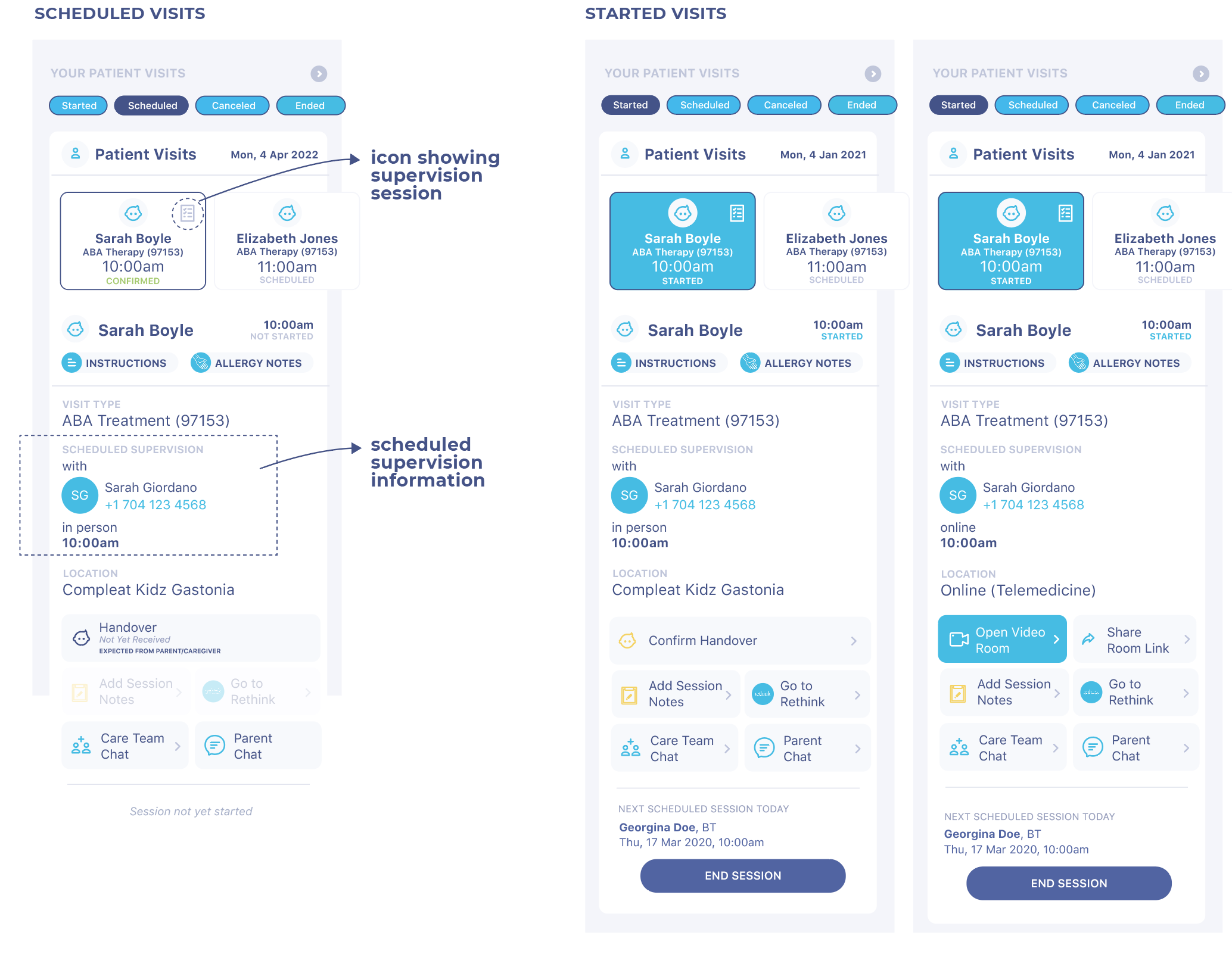
Supervision Sessions
Supervision Sessions are displayed in your visits cards. To view details of the supervision session (the BCBA, as well as the time and location) make sure to tap the corresponding visit card.