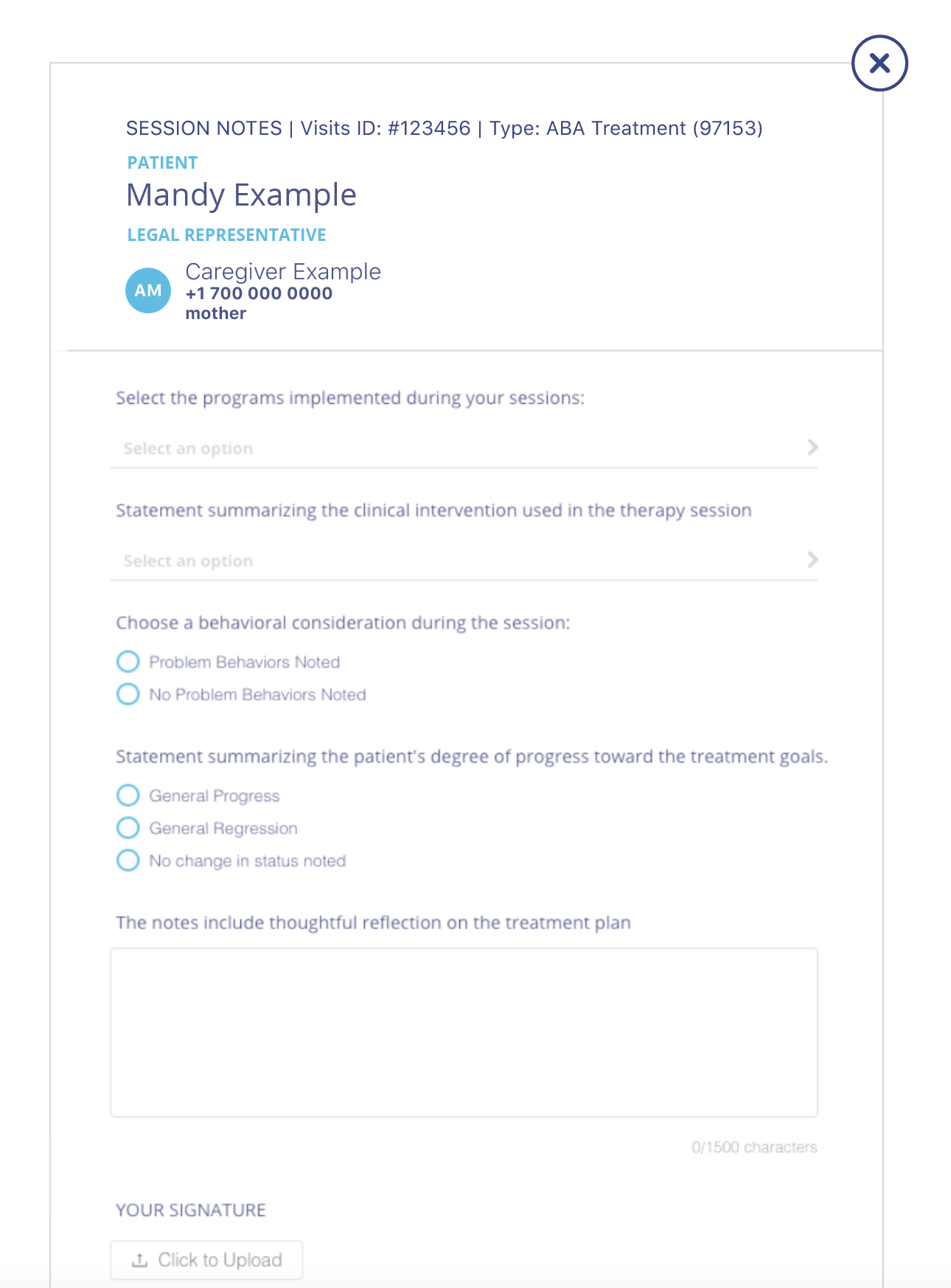
Please note the bottom section of the Session Notes will be sent to parents/caregivers. To add the Programs Implemented during the session and Clinical Interventions, tap on the selectors, choose from the list the items that apply to the session, and tap 'Done'. Use the checkmarks that follow to signal whether they are Problem Behaviors noted or not, and if there is General Progress, Regression, or No Change. For the section that is shared with parents, select the Activities that took place during the session, the child's overall mood by selecting one of the little faces in the form, and use the checkmarks to select if any materials were needed. In the free-text box type in any notes, you would like the parents to see - reflection on the session, overall treatment, reminders, etc. Lastly, sign the form and when you are finished, tap on 'Save Note'.
The Session Notes can be added and edited throughout the session, as well as after the session ends. Tapping the back arrow after filling in some information in the Session Notes will not cause the information to be lost and you can continue documenting later. IMPORTANT - Once saved, Session Notes will no longer be editable. 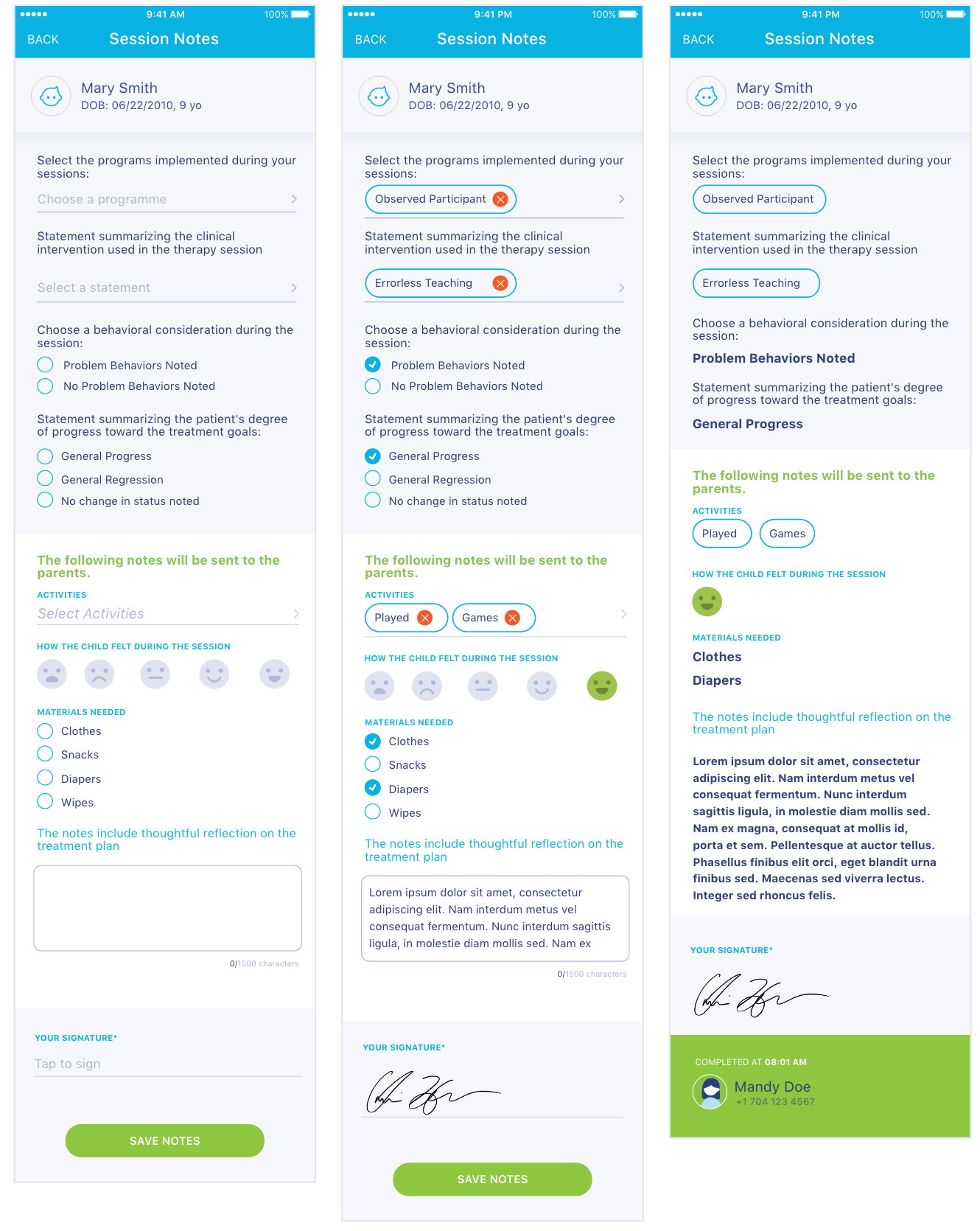
Ideally, you would be filling in your session notes during the patient visit. However, you can also fill them in after you end your patient visit. If you did not completely fill in and save your session notes, that appointment will be colored yellow in the Ended filter in your Visits section. It will turn green once you complete and say the notes. 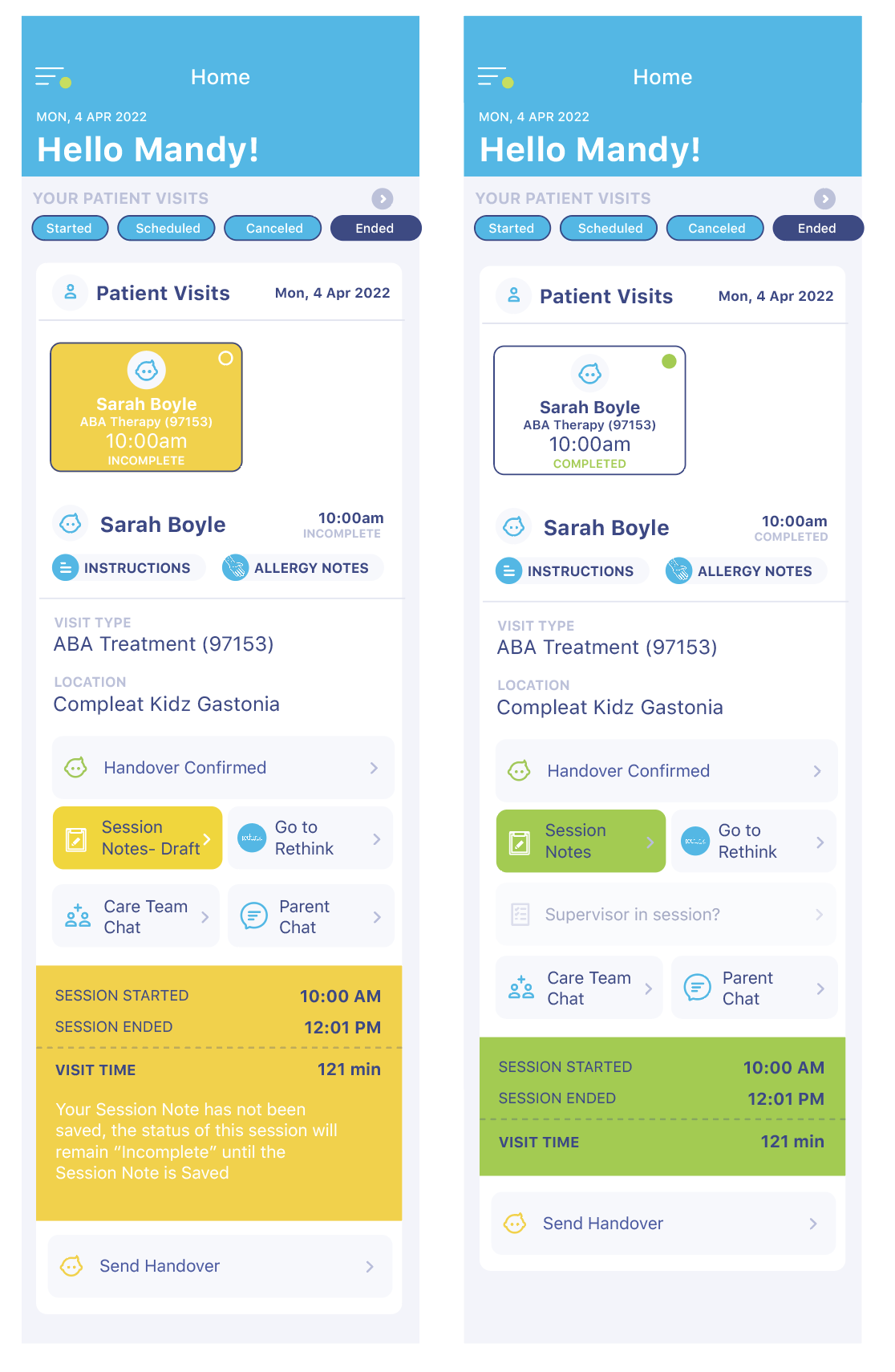
The Session Notes can be added and edited throughout the session, as well as after the session ends. Taping the back arrow after filling in some information in the session notes will not cause the information to be lost and you can continue at a later time. IMPORTANT - Once saved the notes are not editable. After the form is completed, use the 'Save Notes' button. Please note the form will also be sent to the supervised R/BT for their review and input.
Once the BCBA saves the Supervision Session Notes, they will automatically be sent to the R/BT. Review the notes, and use the bottom section to acknowledge them, and rate your supervision. After doing so, tap on the 'Send' button to complete the process.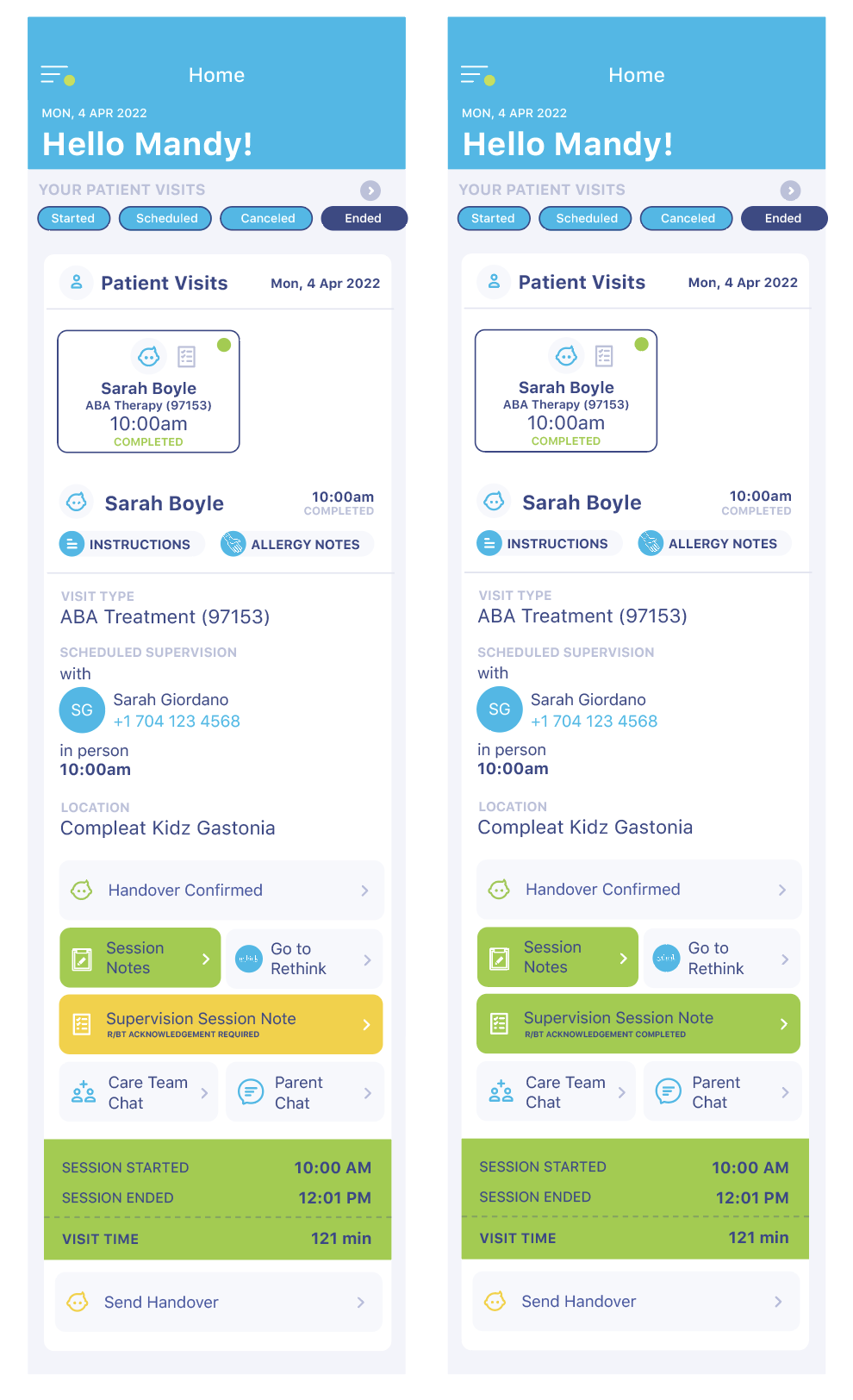
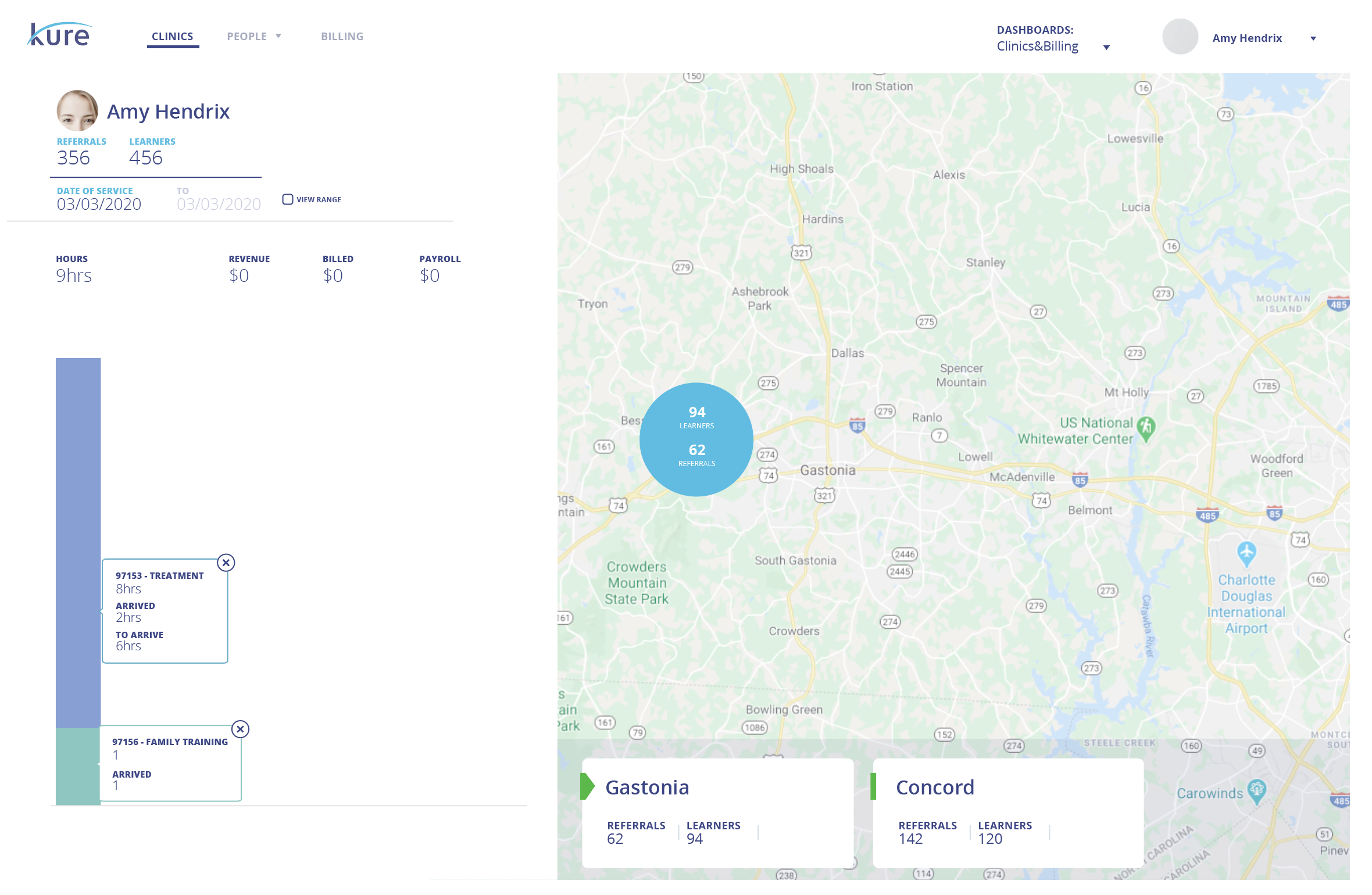
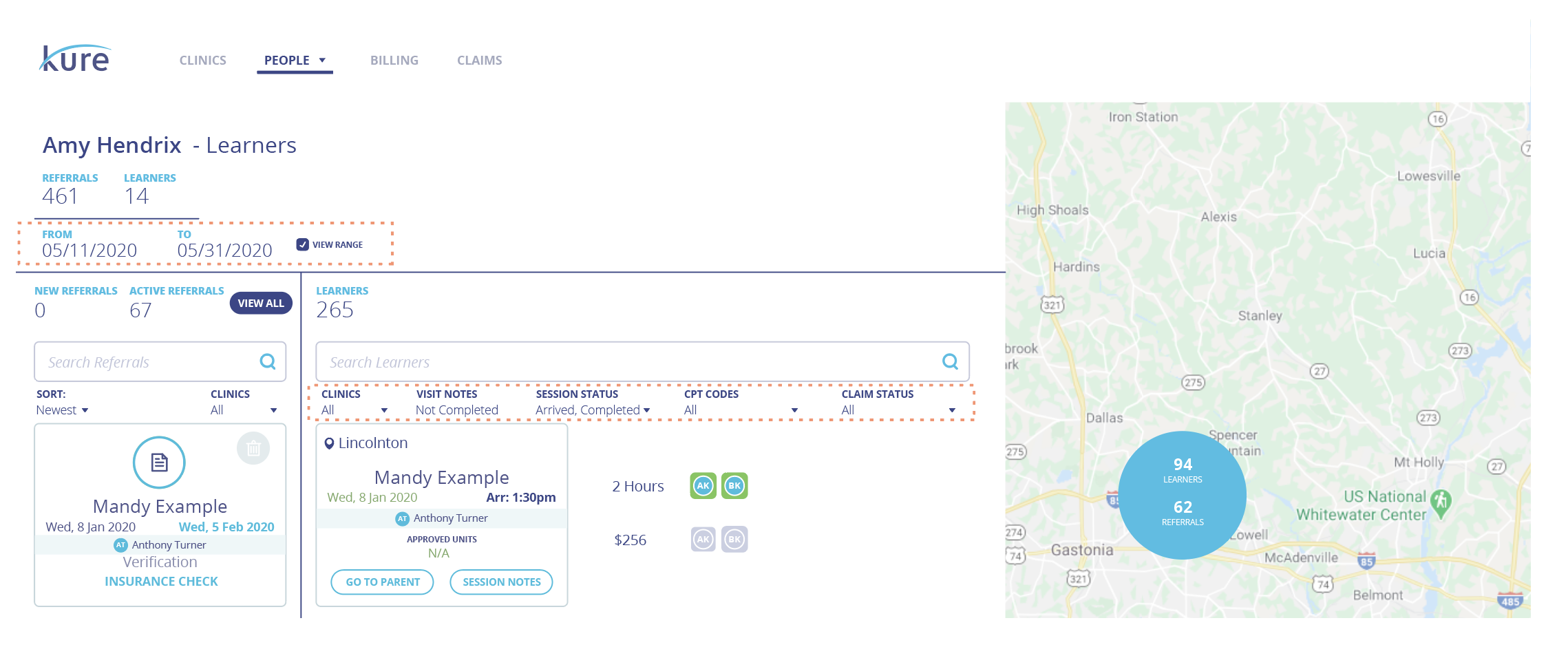
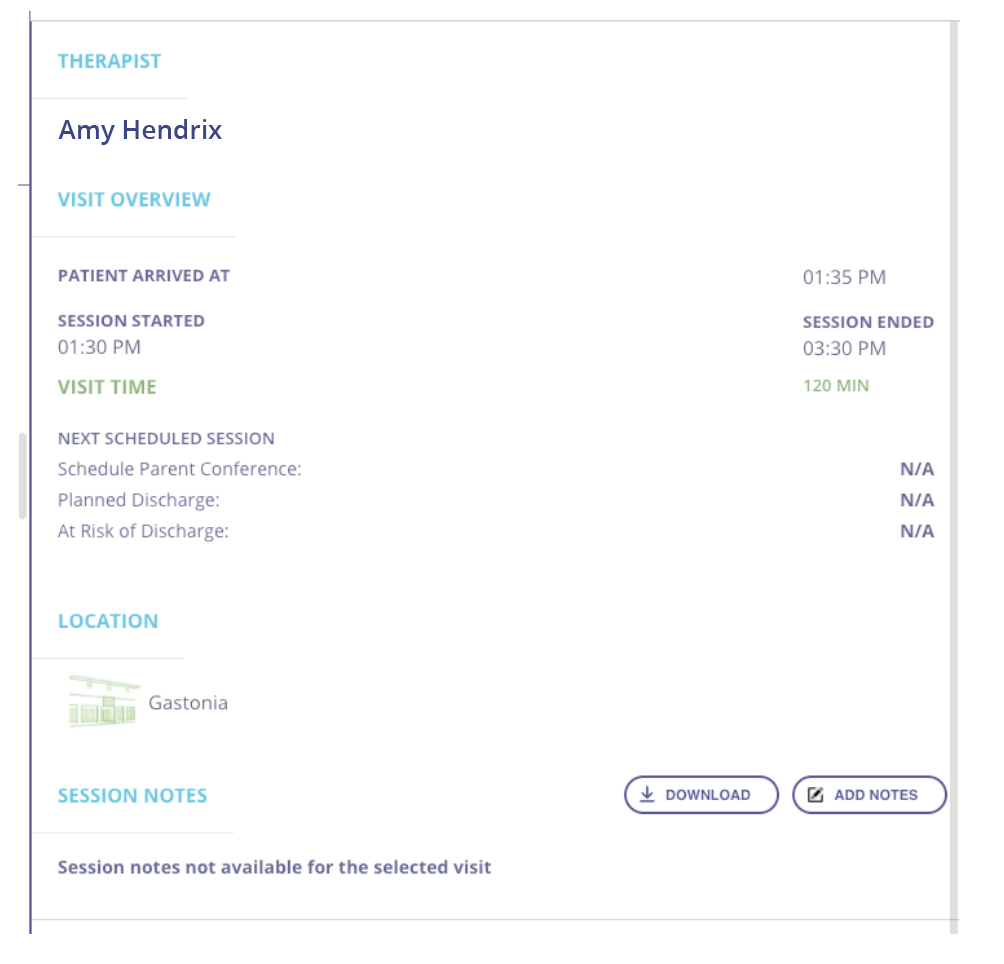
You are able to complete Session Notes via a web browser version of Kure. Currently, your mobile version of the app only saves one week of workday chats, which means if you forgot to get a Session Note completed and you are past the one-week time frame, you cannot retrieve the chat to complete your Session Note. This is a step-by-step process on how to use the web-based version of the Kure app. Step 1: Log onto kureapp.com using Google Chrome. The app does not work well on other browsers at this time. Google Chrome is a free download. Use your same log-in phone number and password as you use for the mobile version. Once you log in, you will see the following screen: Step 2: Click on the last icon in the left sidebar that looks like a bar graph. This will take you to your dashboard. Step 3: To the right of the Kure logo in the top-left corner are 3 View Options: CLINICS, which is the default view, PEOPLE, and BILLING. Click on PEOPLE and select PATIENTS from the drop-down menu, which takes you to the following view: Step 4: Set your date range. In the example below, I have selected the month of May, 2020. You may filter the results using 5 different filters: CLINICS, SESSION NOTES, VISIT STATUS, CPT CODES, and CLAIM STATUS. For our purposes, set the SESSION NOTES and VISIT STATUS filters to find your visits with incomplete Session Notes. Under the SESSION NOTES filter, click the drop-down menu and select “Not Completedâ€. Lastly, under the VISIT STATUS filter, click the drop-down menu and select “Arrived†and “Completedâ€. Scroll down looking for green squares in the first row next to the learner’s name. These green icons represent visits that do not have a Session Note. If you hover your cursor over the green icon, details about the visit appear. Step 5: Single-click on the green icon to open up a “detail view†where the map is currently displayed. Scroll down to the SESSION NOTES section. You will see 2 action buttons: “Download†and “Add Notes†Step 6: Click on the ADD NOTES action button and a pop-up screen appears that allows you to enter your Session Note data and save it. You will need a digital signature prepared as a file that you will need to upload to sign your note... this is required. Click the SAVE button when you are done. See screenshot. Here is a link that you can use to create a signature file along with Timmy Sieber’s instructions. You will need to do this from a touch-screen device: https://signature.compleatkidz.com I would recommend turning the device landscape and then refreshing the page to get the most space for signatures. Save this signature so that you can retrieve it, when needed.

Contents