Other Workday Functions
last updated on Apr 01 2022, 6:36 pm EST
Add Required Admin Time
This applies to Clinical Staff that are paid "Hourly". If you are paid via a Salary, you do not need to account for Admin/Non-Clinical Hours to get paid properly
Hourly staff are paid for the following
- Arrived Patient/Learner Session Hours
- From a Payroll and Billing standpoint, these hours are accounted for by virtue of the scheduled Patient/Learner sessions that are arrived on the schedule. The actual hours are confirmed via the Session Start/End Time Confirmation form.
- Pre-Approved Admin (Non-Clinical) Hours
- These hours must be accounted for via the Add Pre-Approved Non-Clinical/Admin Hours form, which is added to your Workday from the Workday forms menu.
- This form must be added to your Workday on the date of service the Admin (Non-Clinical) "work' was performed.
- These hours, once submitted, must be approved by your Supervisor or an ABA Administrator via Kure to be added to your Payroll
How to Add and Complete the Pre-Approved Admin (Non-Clinical) Hours:
- Use the Add Required Amind Time option from your Workday section in Inbox
- Select the TYPE of Non-Clinical/Admin Hours from the selection menu
- Enter a description, if the DESCRIPTION field is active
- Provide a brief, but fully descriptive explanation of the work that was approved. If it was a mandatory training that you attended or taught, give a description of the training (ie. CALM Training)
- Provide the name of the supervisor that approved these hours (ie. Approved by Stacey Donavant)
- Tap the START button when you begin the pre-approved work
- Tap the END button when you finish the pre-approved work
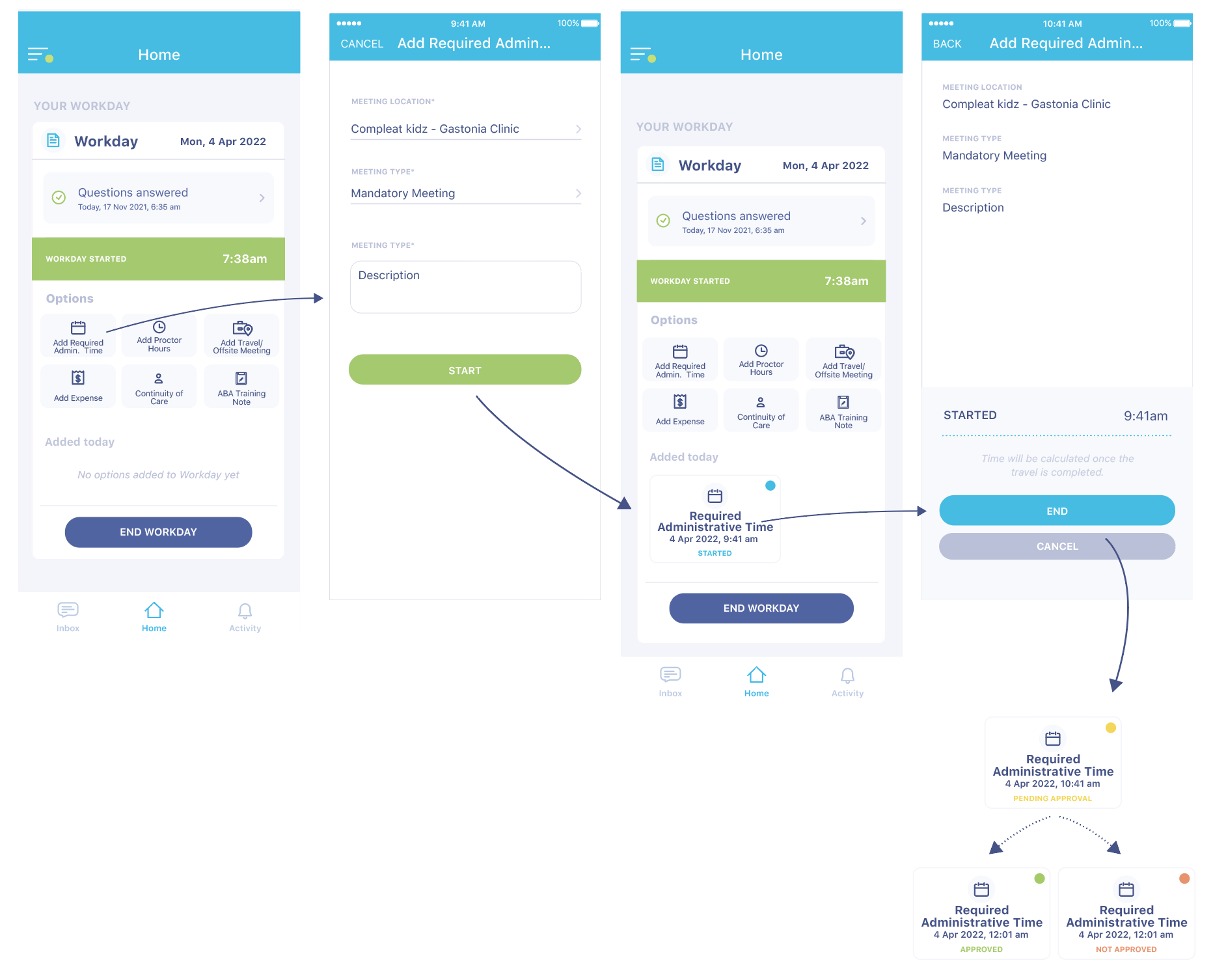
Approval/Denial Status Notification
- Until the Required Admin Time hours are approved by your Supervisor or an Administrator, the card will be yellow and state Pending Approval
- Once it has been reviewed by your Supervisor or an Administrator, it will be either Approved or Denied
- If approved - the card will show approved
- If denied - the card will show it as denied and you can see the denial reason by taping on the card. The most common reasons for denial are:
- Your Supervisor did not pre-approved the Admin (Non-Clinical) Hours
- You overstated the number of hours because you did not tap the END button when the activity was completed
- You did not provide sufficient information in your submission - this is most common with the "Other" type
- The description of the work performed is insufficient - for example: "Other" is entered in the DESCRIPTION field
- The name of the Supervisor that pre-approved the work is missing
Types of Admin (Non-Clinical) "Work"
- Mandatory Meeting - example: you are asked to participate in a meeting with your immediate supervisor and HR to discuss absenteeism
- Chart Reviews/QA - example: you are asked to assist with chart reviews for an internal or external audit
- Non-Visit Documentation - example: you are asked to complete a narrative regarding a learner incident
- Receiving Mandatory Training - example: CALM Training (Paid at your Clinical Rate)
- Teaching at a CE Event (Not Proctoring) - example: CALM Training Trainer (Paid at your Clinical Rate)
- Other: This will be the most common Type - examples: Cleaning/Organizing the clinic, Creating Stimuli, Shadowing with Joe Therapist
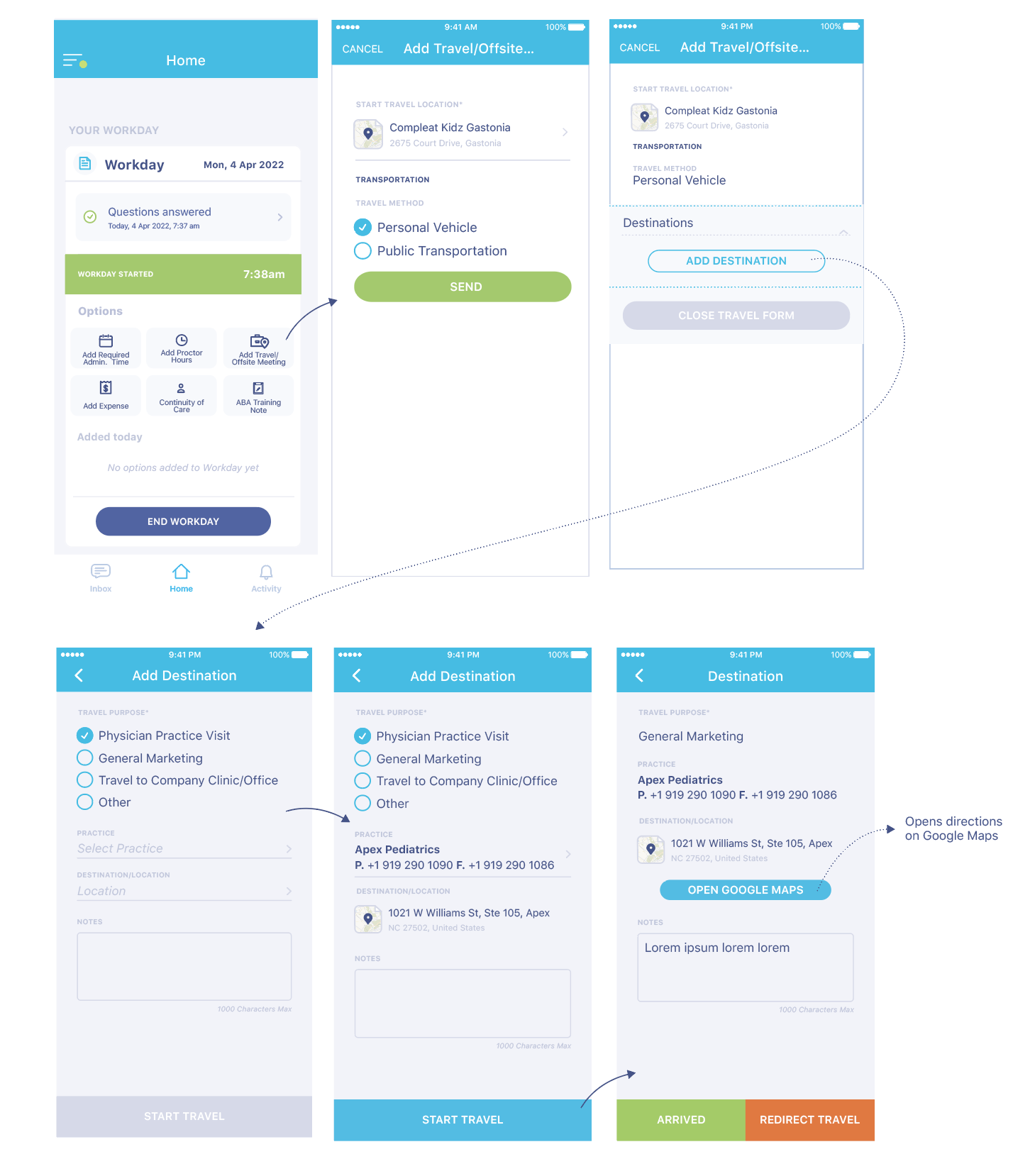
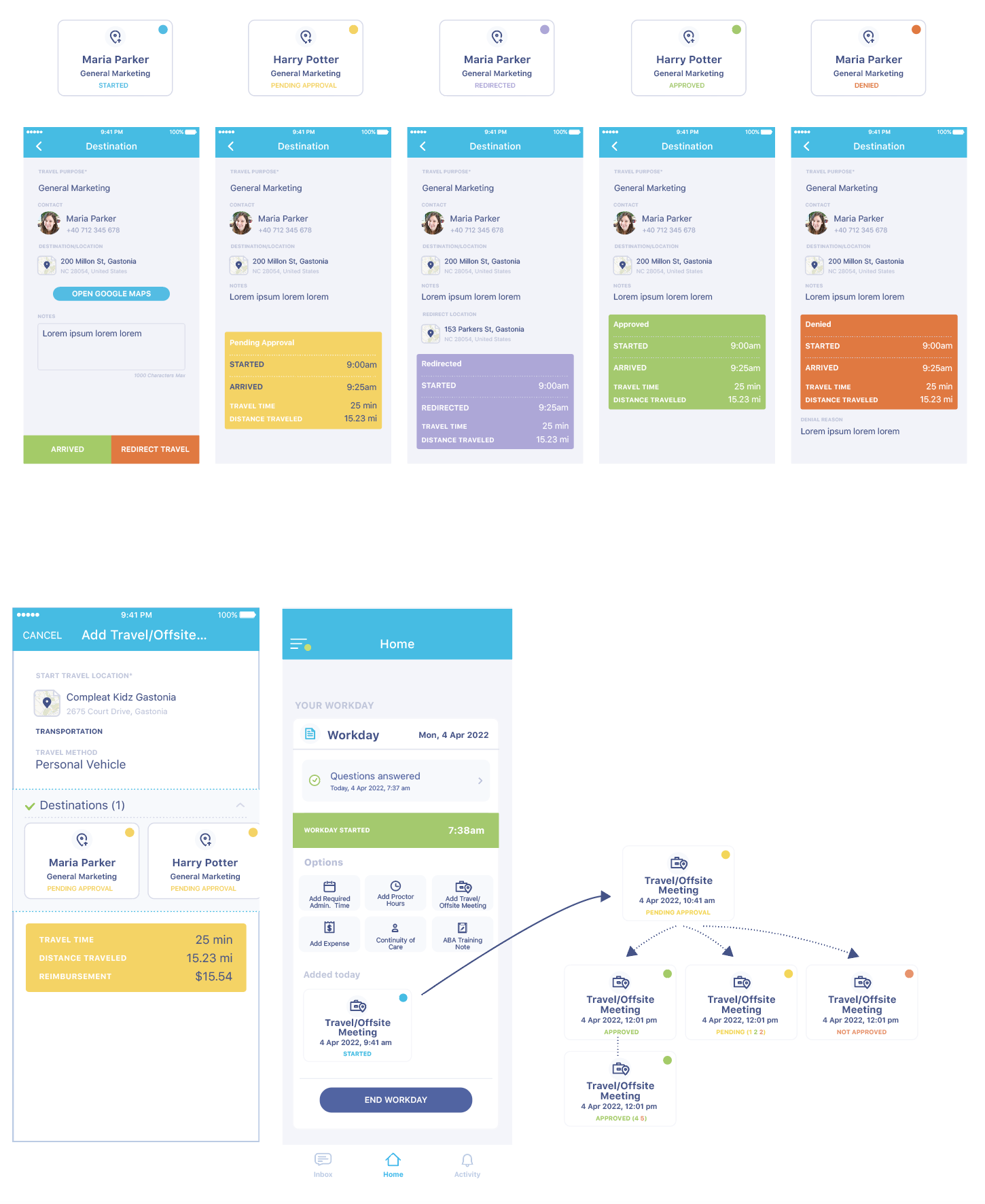
Add Travel/Offsite Meeting
- Select your current location as the "starting location"
- Identify your mode of transportation
- Tap the Send button
- Add a Destination, along with its details, and use Start Travel.
- When you reach your destination, tap the Arrived button
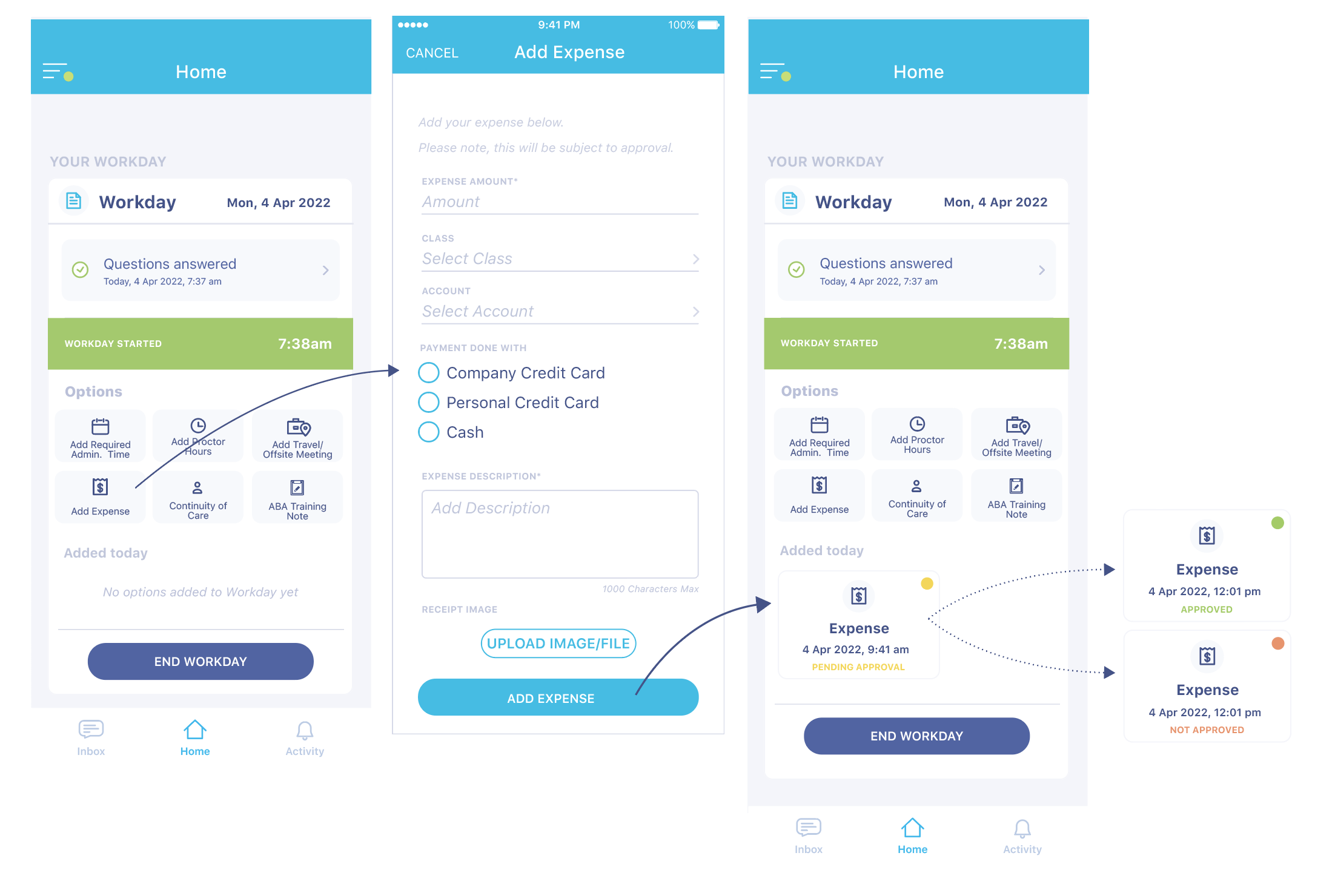
Add Expense
Enter the expense amount
Select the appropriate expense class from the selection menu
Select the appropriate expense account from the selection menu
Select the payment method
Enter a brief but fully descriptive description of the expense starting with the vendor. Example: Office Max: 12 3-ring binders, 1 box copying paper, 1 4-pack highlighters
UPLOAD IMAGE/FILE: Take a picture of the receipt with your phone camera and tap this button to upload it to the form
Tap ADD EXPENSE button to submit the expense
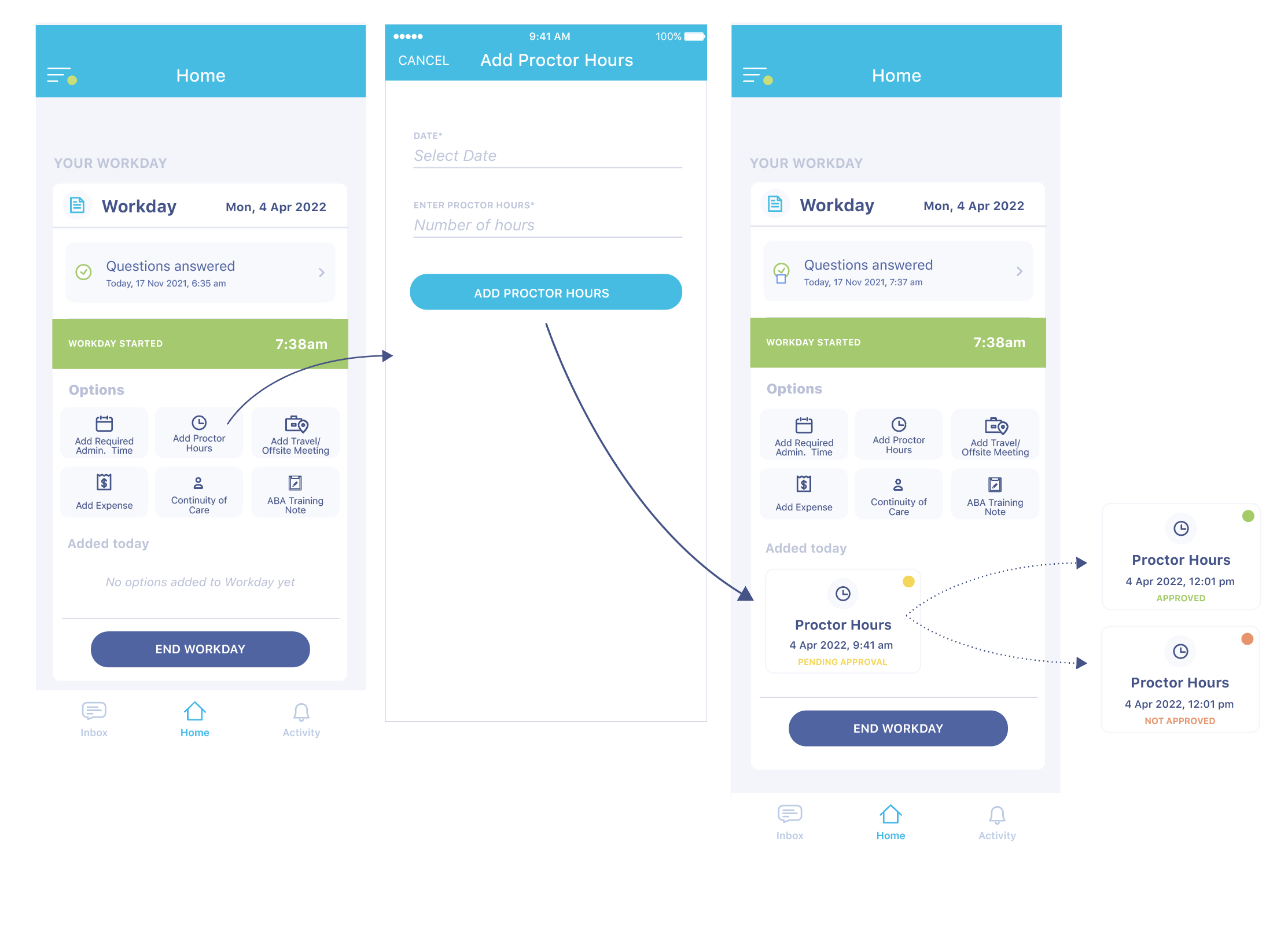
Add Proctor Hours
If you have been approved to function as a Proctor, this function will be active.
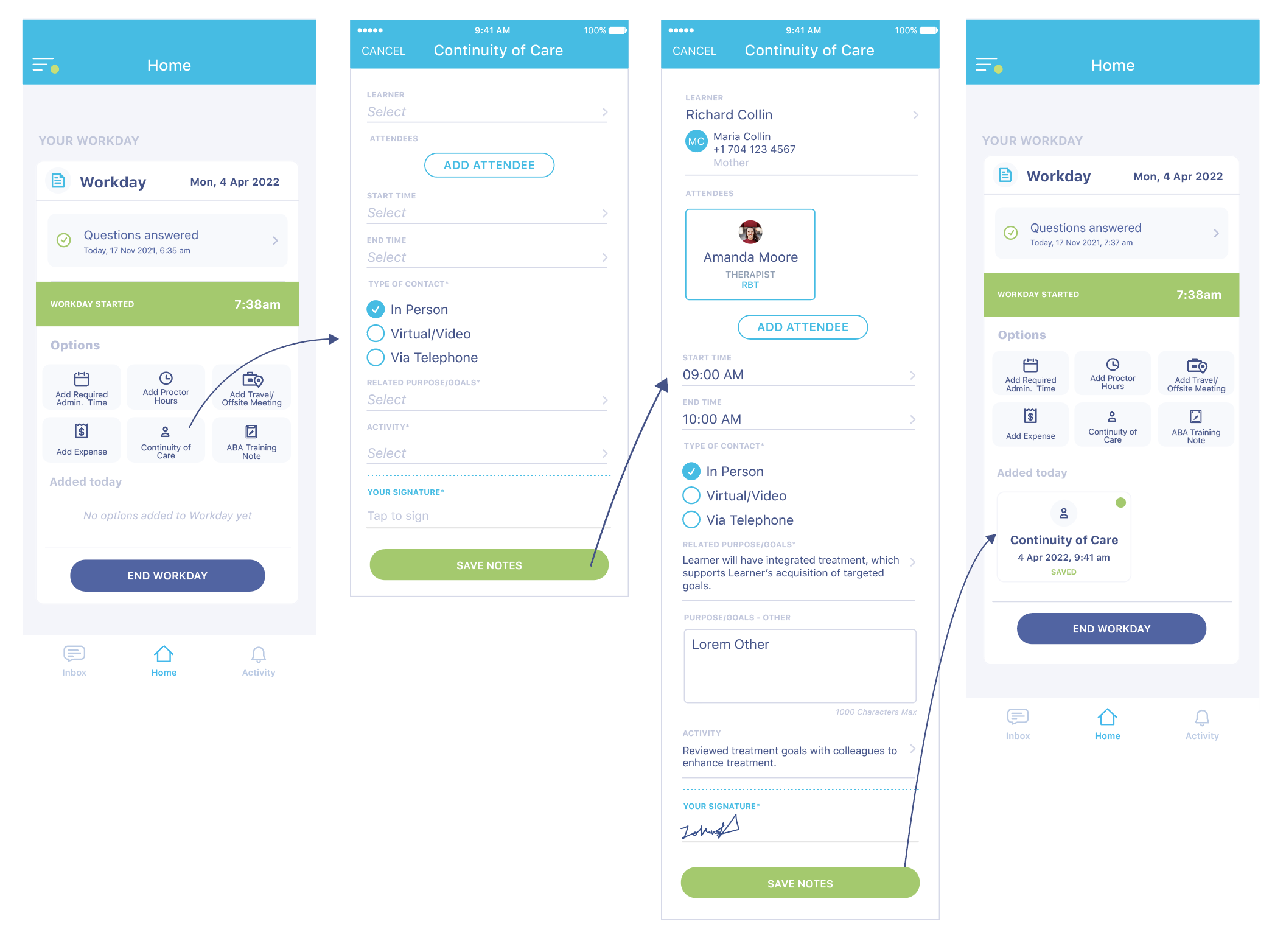
Continuity of Care
This loads a Continuity of Care Note form, which is used by our Psychologist and BCBAs for patient/learner documentation not related to a patient/learner session or for a non-billable patient/learner session.
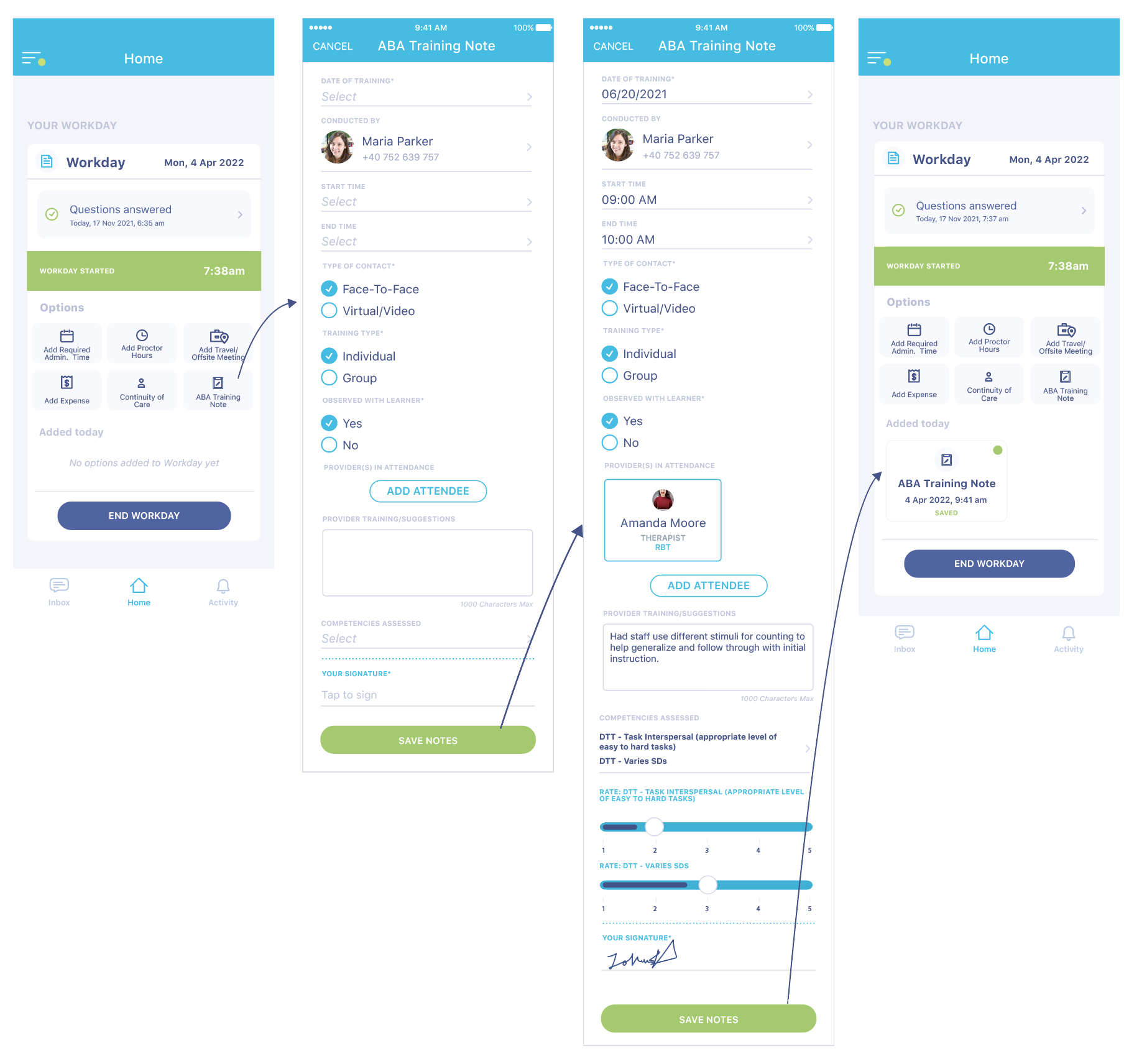
ABA Training Note
This loads an ABA Training Note, that is used by our BCBA/BCaBA providers to document non-billable supervision sessions. These sessions can take place with an individual provider or a group of providers. The time spent is accounted to the trainees' supervision hours.